Click here to open this guide in a new browser tab. You can also view the Video Guide by clicking here.
This Guide will show you how to use Iterate when creating Photo Magic renders. Iterate is used to make changes to an existing AI Render without generating an entirely new image.
Once you've created a Photo Magic render, you're able to use Iterate to make any custom changes without losing that specific render. You can also fix or remove an aspect of the render that you don't like.
Example uses of Iterate:
- Change the color of clothing
- Add additional clothing, or an object to someone's hand
- Change the background to a sports arena, outside a western saloon, or anywhere else
- Zoom in and frame the image around the person
- Remove someone's hat, or remove an object from the background
You can use iterate to make a change, and then use it again if you want to continue building off that last change. Previous changes remain "locked in", one example of a string of changes could be:
- Add a green hat to the person's head
- Change the shirt buttons to white and add white trim around the sleeves and neck
- Change the background to the home plate area of a major league baseball stadium. The person is standing directly on the grass
- Add a baseball fielder's glove to the person's left hand
- Add the number 8 to the left side of the person's jersey
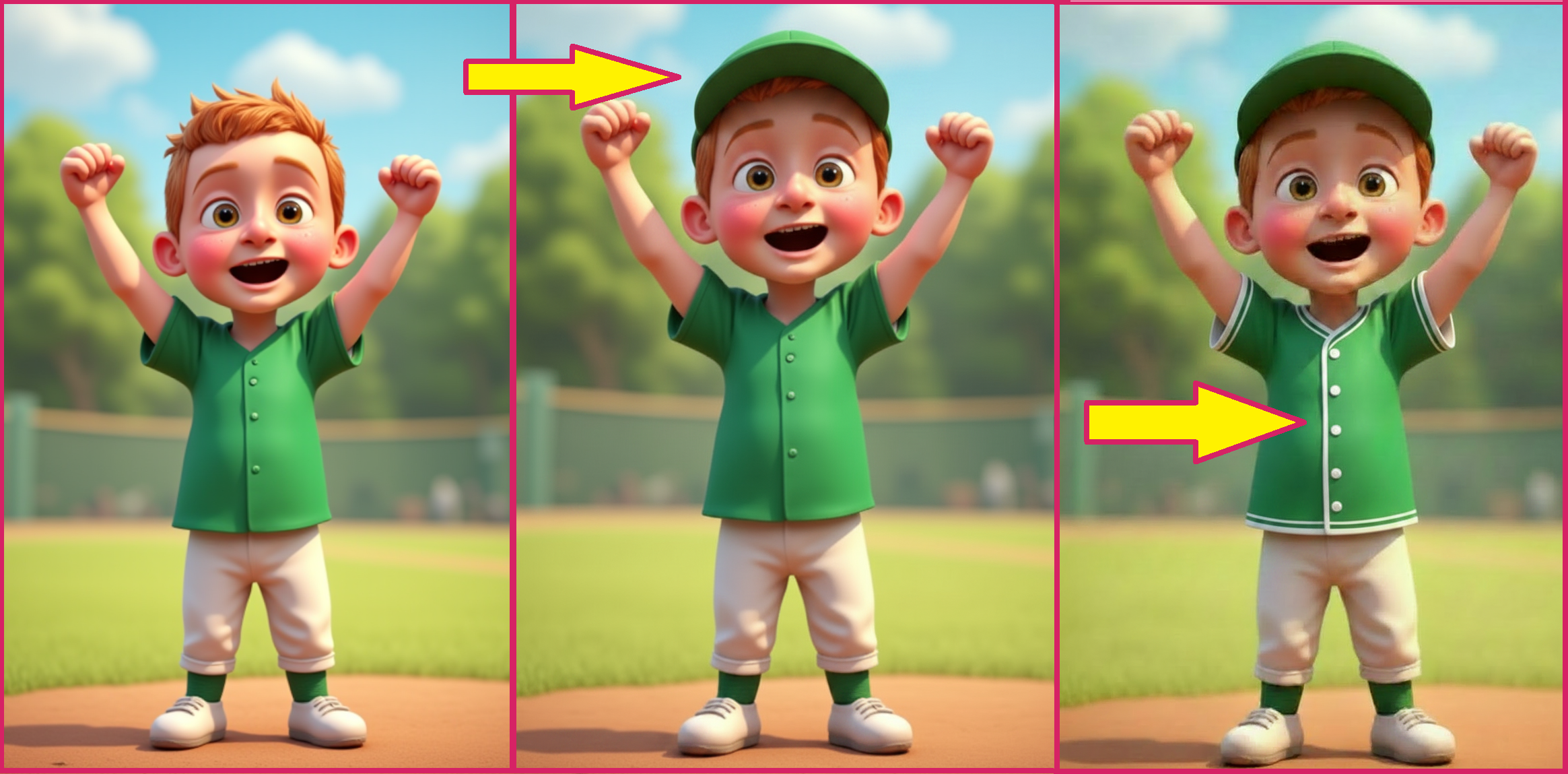
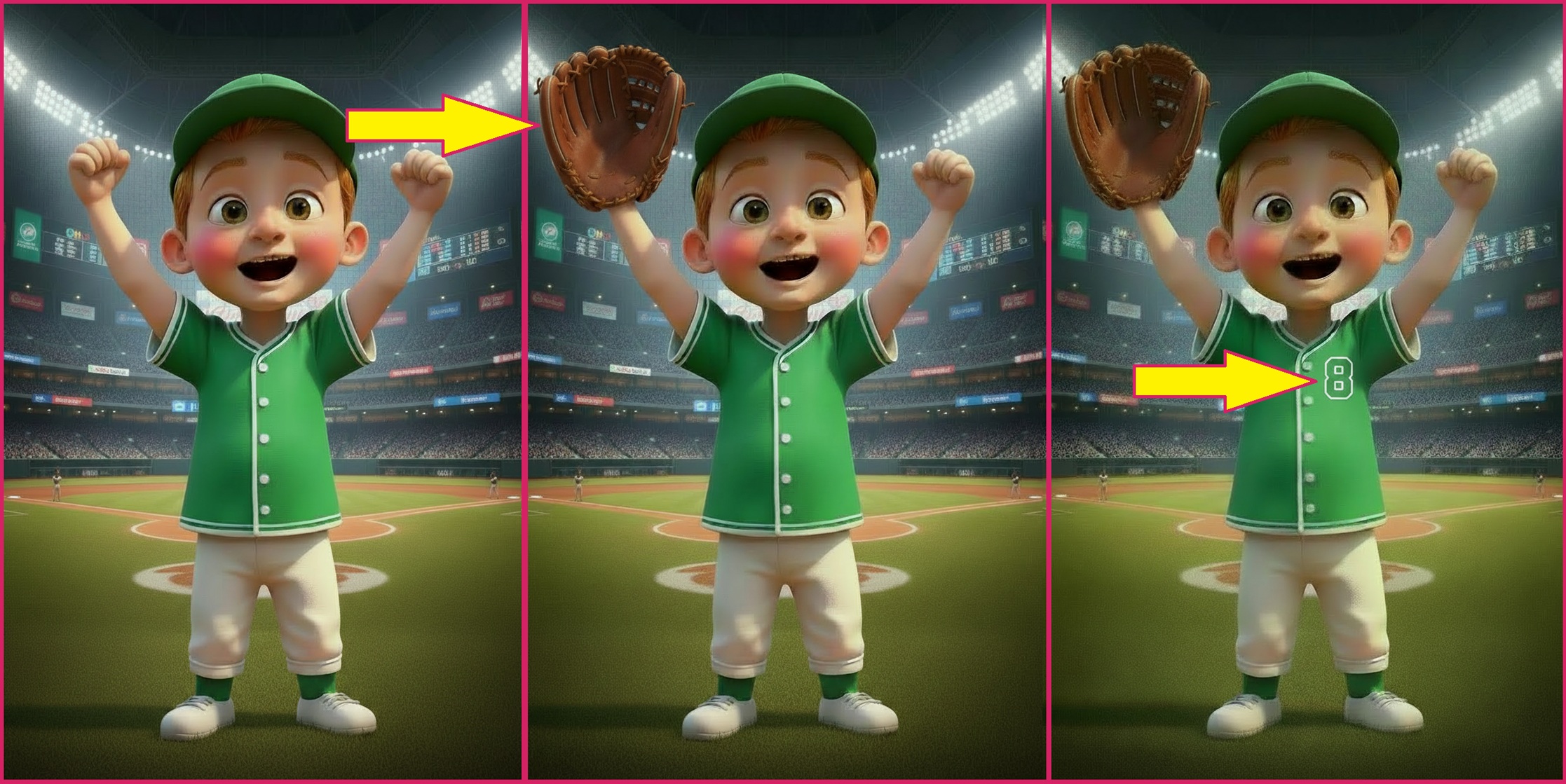
To use Iterate:
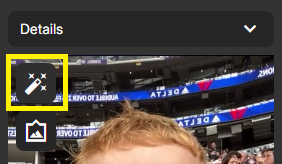
1. For any Capture submission, click the Magic Wand in the upper left corner of the Image
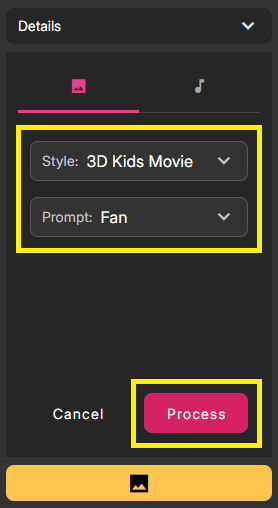
2. Select any Photo Magic Style and Prompt, then click Process as you normally would with Photo Magic
3. Once the Renders are available, view all 4 and select the best one by clicking the #1-4 below the Render

4. With the Render selected, click the Magic Wand again to open the Iterate menu
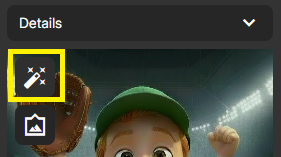
5. In the text box for Iterate, simply type in the change that you would like to make and click Process. For example, "Add a green hat to the person's head"
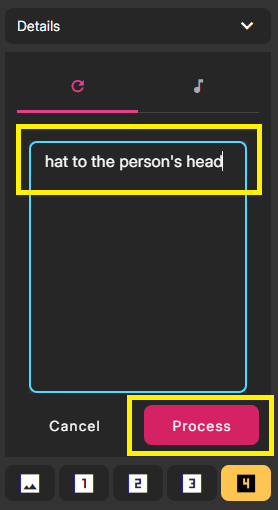
6. Observe the new version of your render
7. If desired, repeat steps 4-6 as many times as you want
Please use the Support Chat for any further questions. Thank you!
Was this article helpful?
That’s Great!
Thank you for your feedback
Sorry! We couldn't be helpful
Thank you for your feedback
Feedback sent
We appreciate your effort and will try to fix the article