This guide will show you how to set up and run Lightshow. Click here to open this page in a new browser tab. You can also click here to open the video guide.
Topics Covered:
- Customize Phone Design
- Customize Output Design / CTA (optional)
- Create Custom Lightshow Program (optional)
- Running Lightshow
i. Customizing the Phone Design
The first step is to set up your Phone look. This is done in the Phone Design section, in the Left Nav.
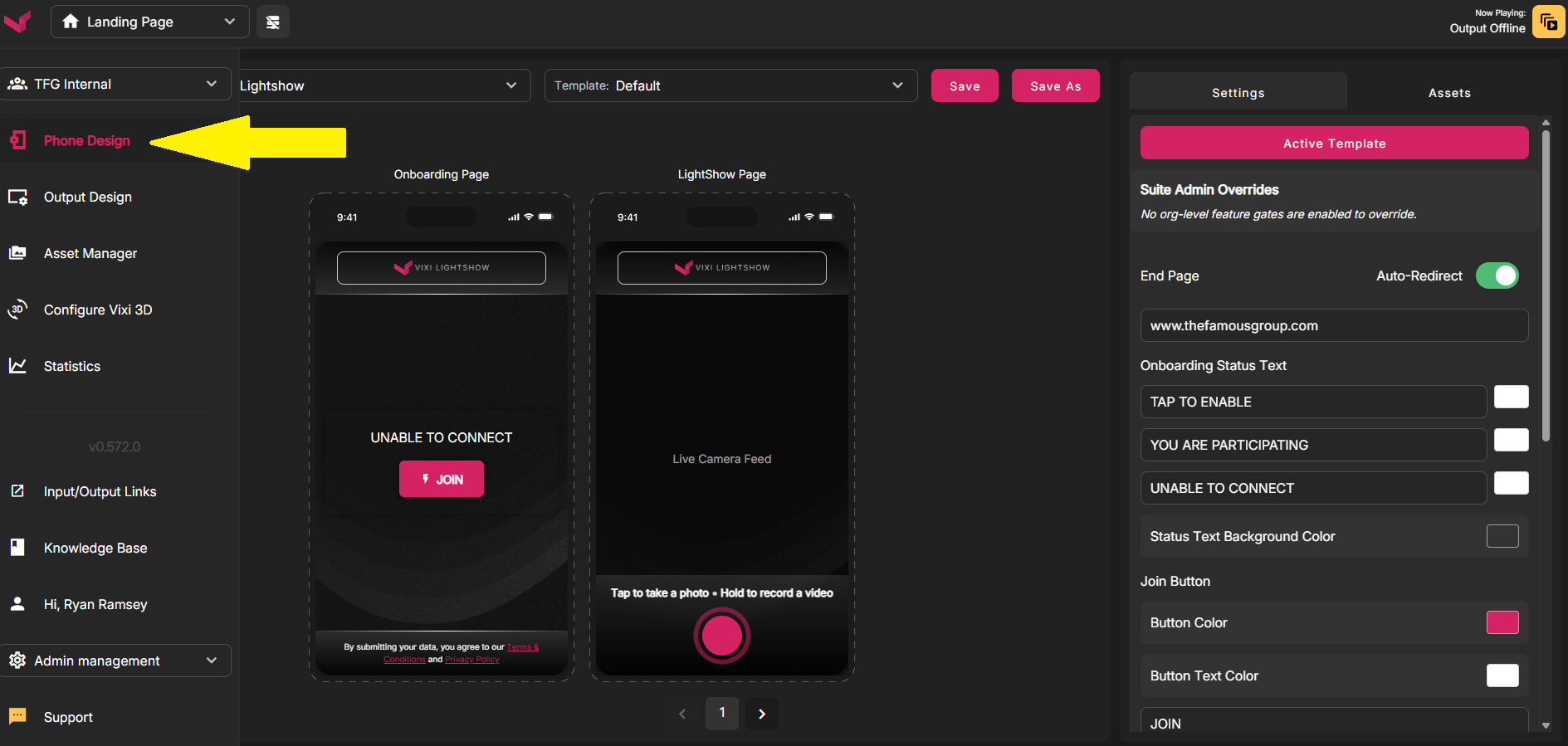
Once you're on the Phone Design page, use the dropdown menu to select Lightshow. On the Lightshow design page, there are two tabs in the far right column. The Settings tab, and the Assets tab:
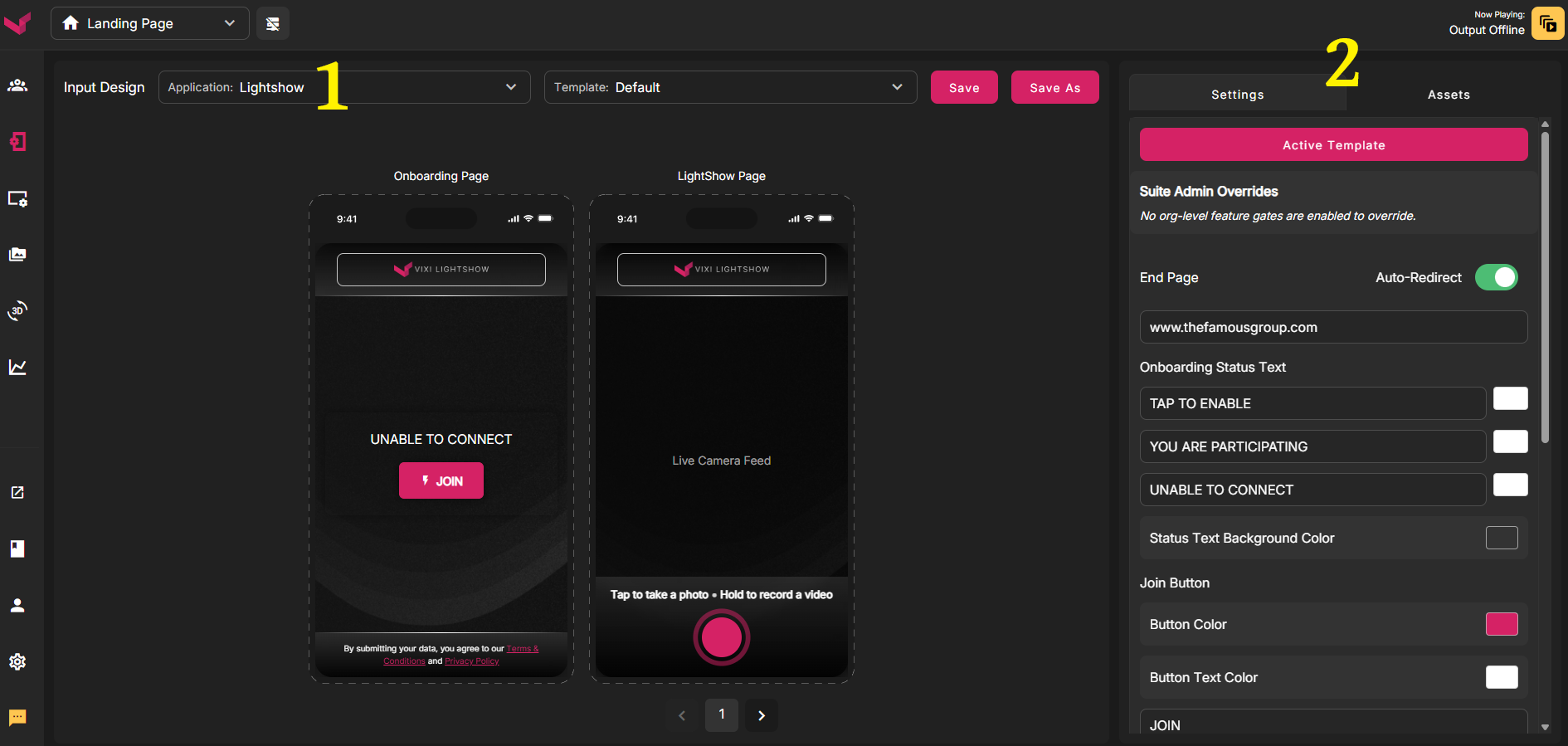
Settings:
End Card URL:
This is a URL that all fans are sent to after the moderator ends the Lightshow (by locking it). You can enable Auto-Redirect so that fans are automatically sent to the URL, or you can disable Auto-Redirect so fans see a Post-Participation page first. The post participation page typically contains a custom graphic that you've created. Once a fan advances to the post participation image and physically taps their phone screen, they advance to the End Card URL that you've chosen.
Status Text:
You can reword any of the various Onboarding Static Text messages. This is particularly helpful when changing to another language.
Color:
You can change the color for various aspects of the page. When using the color sliders, the top slider is the color and the bottom slider is the opacity. You can also enter a hex color code.
Font:
Custom fonts can be uploaded. If you have multiple fonts available, you can switch between them using these dropdown menus.
Assets:
Title Image:
This is the small rectangular image that shows at the top of the phone screen. Max file size is 5 MB, and the recommended size is 1080w x 360h
Background Image:
This is the main background for all phone screens. Max file size is 5 MB, and the recommended size is 1080w x 1920h
End Card Image: (Optional)
This is the Post-Participation image that displays if you've DISABLED Auto-Redirect. If you do enable Auto-Redirect, this image slot is not used.
Background Color: (Optional)
This color is layered underneath the Background Image. The only reason this color would show is if there is any transparency in your background. In that case, this color would be seen in any spot with transparency.
ii. Customizing the Output Design / CTA (optional)
This section covers the Output, but note that the Lightshow Output is different than the other apps. The Lightshow Output and Output Design are ONLY used to display your Lightshow Call-to-Action. They don't display the actual Lightshow Output (that comes from the fans' phones).
Select Output Design in the Left Nav, and then select Lightshow in the dropdown.
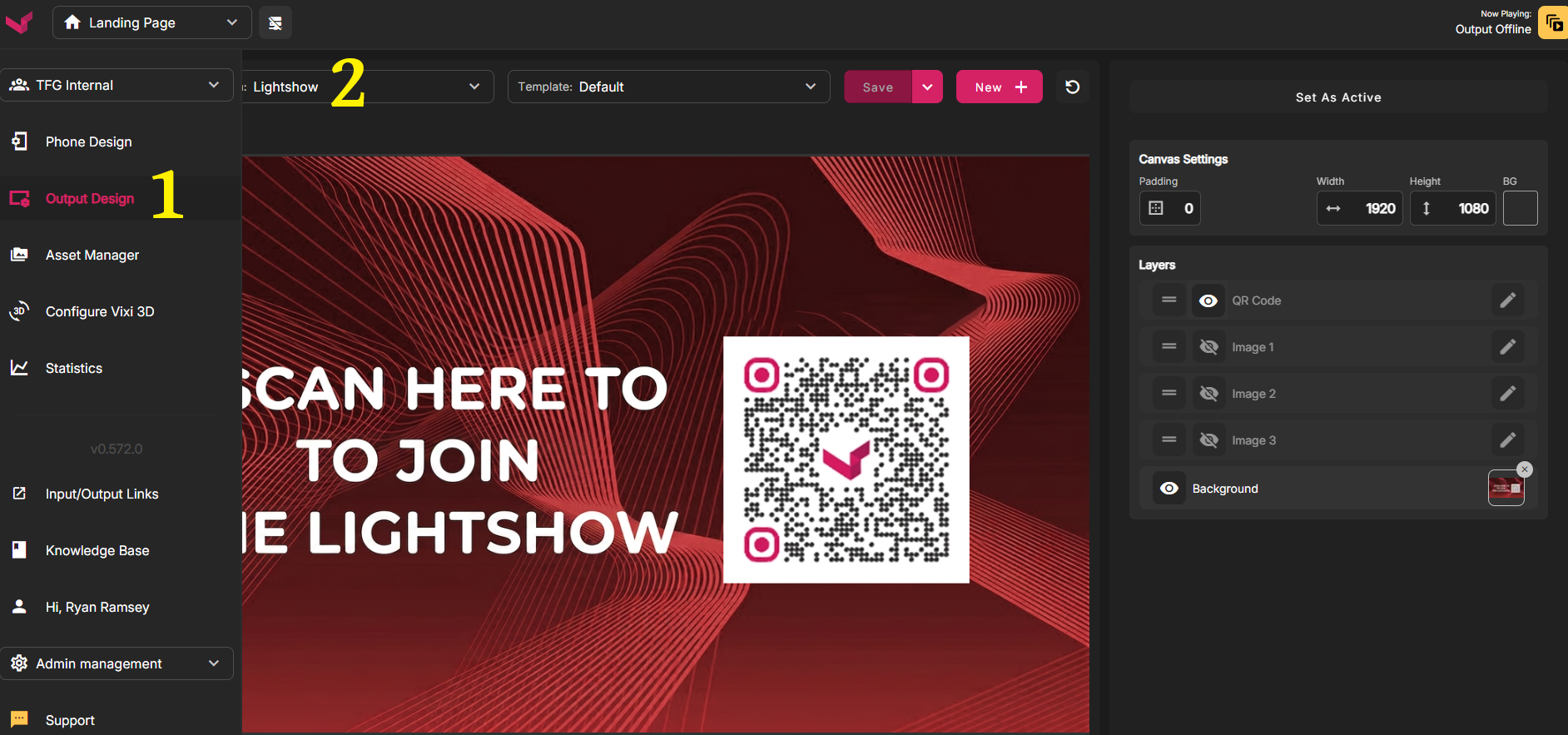
On this design page, you are creating a Call-to-Action. You would typically create a background that includes a message, inviting fans to join. Upload that to the Background slot, and be sure your QR Code is enabled - just like the example above.
Be sure to Save any changes you make. Once you're ready to view this CTA page on the output, open the Left Nav and click to open the Lightshow Standalone. This Standalone page is simply a permanent Call-to-Action page. It has no moving parts and is always "on" and displaying your CTA. We'll discuss the timing of displaying your CTA later in the moderation section.
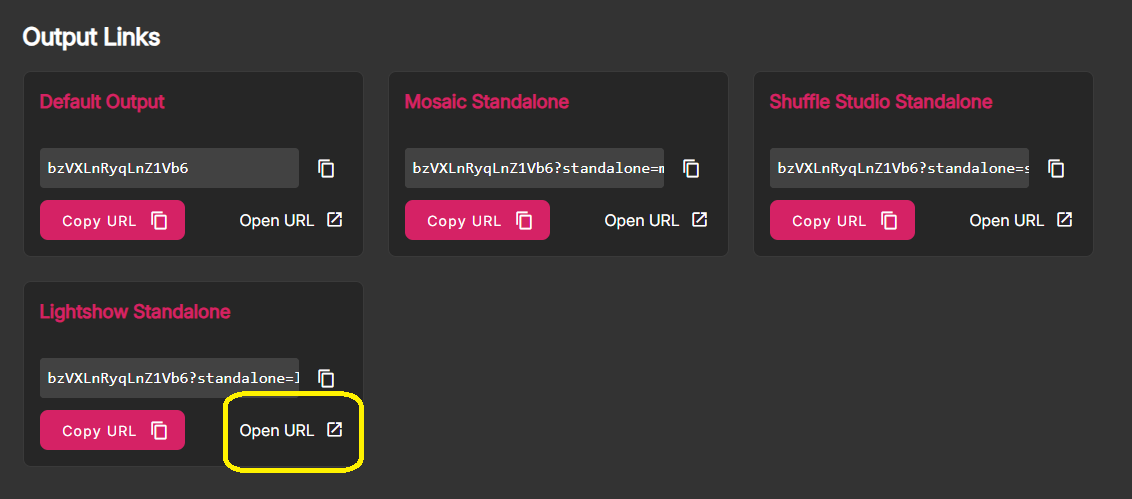
(The Output Design + Lightshow Standalone Output can be skipped if you plan to use a Graphics Machine to display your custom Call-To-Action. We will discuss this more in the moderation section below.)
iii. Create Custom Program (optional)
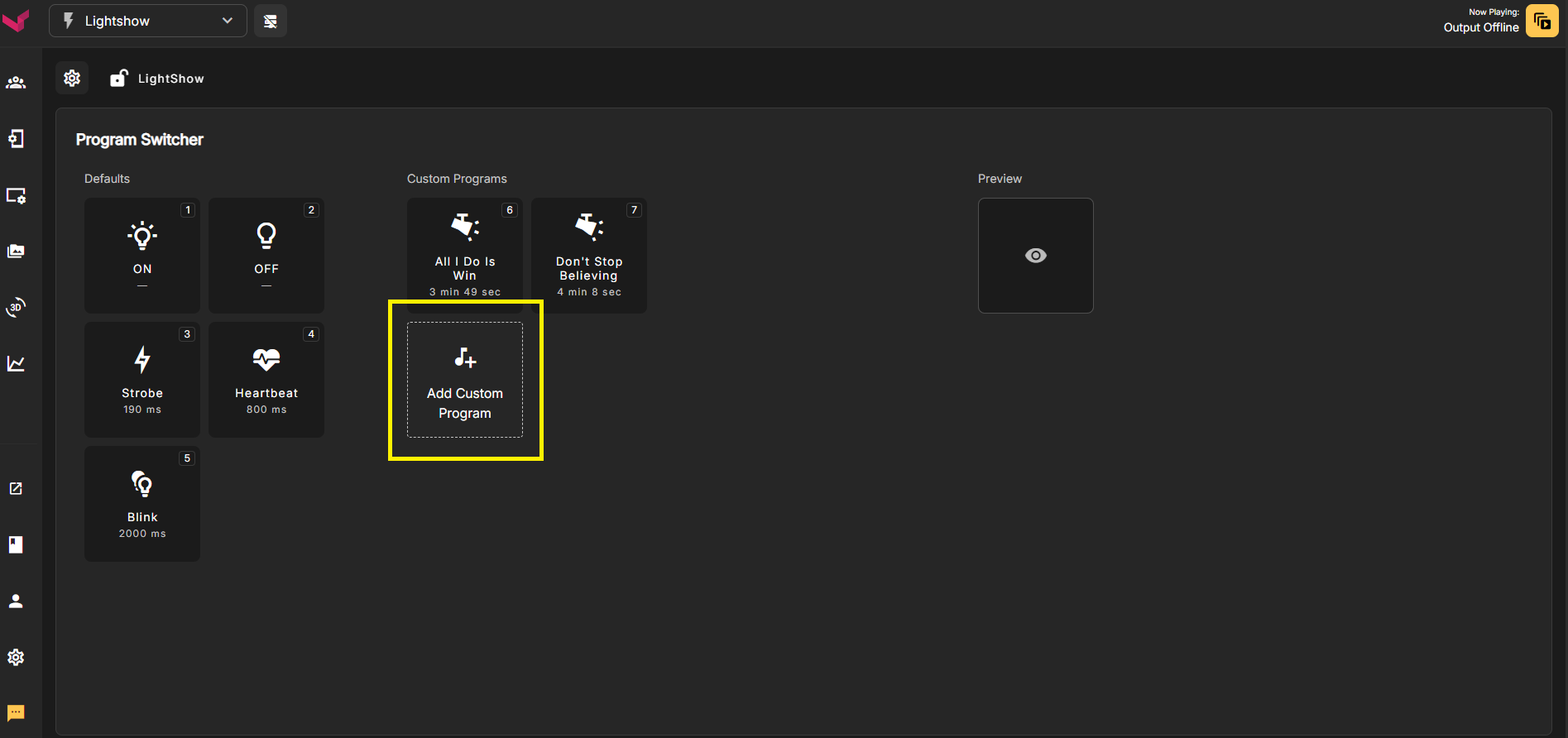
You can upload your own audio file and have the system create a Lightshow that corresponds to the music you've uploaded. To this, follow these steps:
1. Unlock the show
2. Click "Add Custom Program"
3. When the File Explorer opens, select any MP3 or MP4
4. Once selected, the system will create a button with the uploaded song's name
We'll discuss how to use these buttons below in the moderation section.
iv. Running Lightshow
Important Note: The Vixi Suite Lightshow only controls the Lighting. The actual audio track must be played independently. The moderator should time the Lightshow to begin in sync with the stadium audio.
1. Unlock
The first step is to go to the Show Controls tab and unlock the show by clicking the Unlock button. If fans attempt to join while it's still locked, they will be sent to the Post-Participation flow and won't be able to join.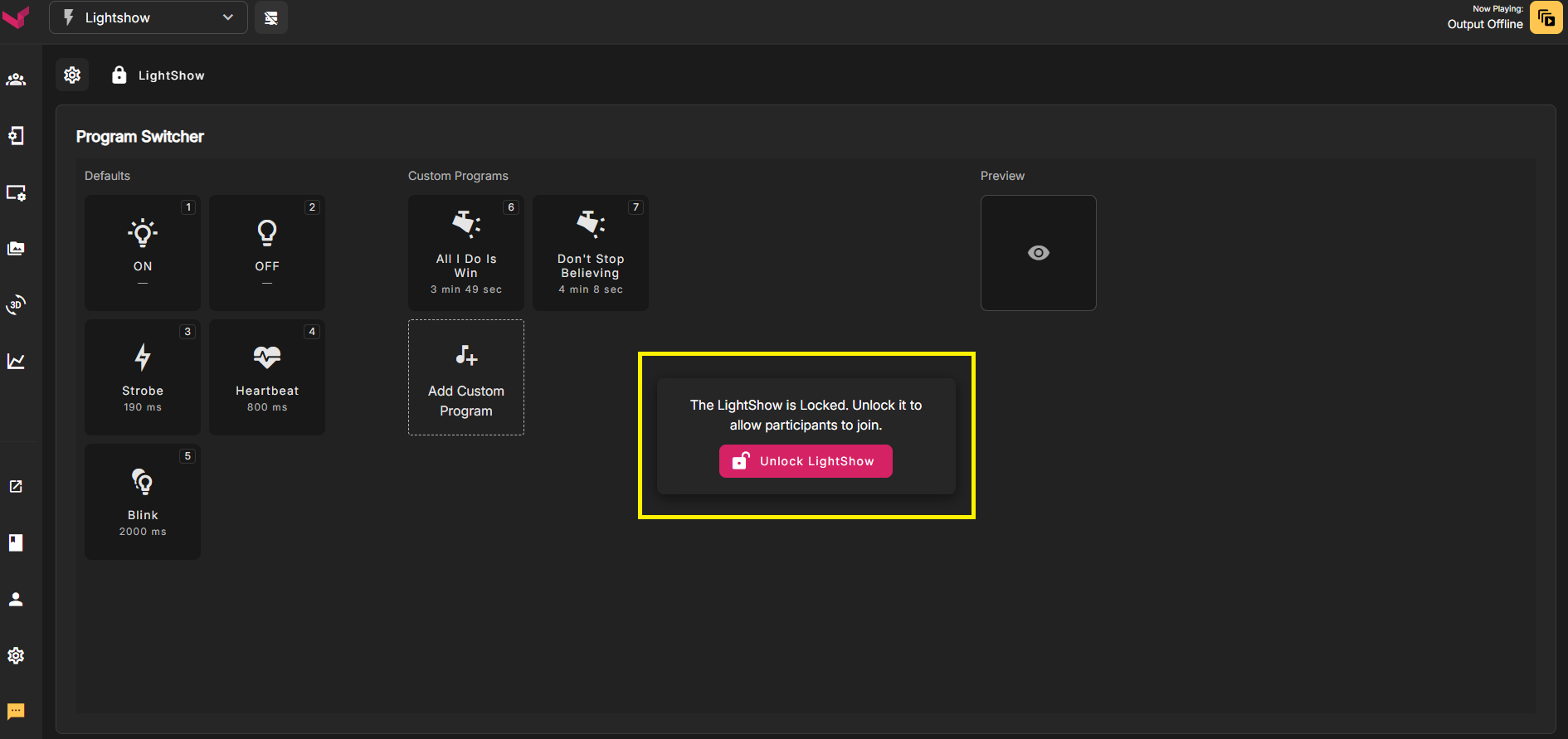
2. Display CTA, wait for fans to join
The next step is to display the Lightshow Standalone Output page on the Video Board so that fans join the show. Open the Left Nav and click "Open URL" for Lightshow Standalone, move that window to another monitor, and press F11 to make it full-screen. (Note that you can instead use a Graphics Machine to display a custom CTA image that you've created.)
Once the CTA is visible on the video boards, give fans 2-3 minutes to join.
3. Begin the Lightshow
Once fans have joined, their phones are synced with the system. Any Lightshow Program selected by the moderator will play on all participating phones simultaneously. The moderator will select which program to run by clicking the corresponding button. You can switch to any custom or default program instantly at any time by clicking another Program button.
One way of running Lightshow would be to create a Custom Program that lasts the entire duration of the activation. You could then play that Custom Program with a single click of a button and the moderator would simply wait for the Lightshow to end.
Another potential way to moderate would be for the moderator to manually change programs based on the live events that are happening. For example, you can manually select Heartbeat, Strobe, Blink, and Off to match the timing and pace of the action.
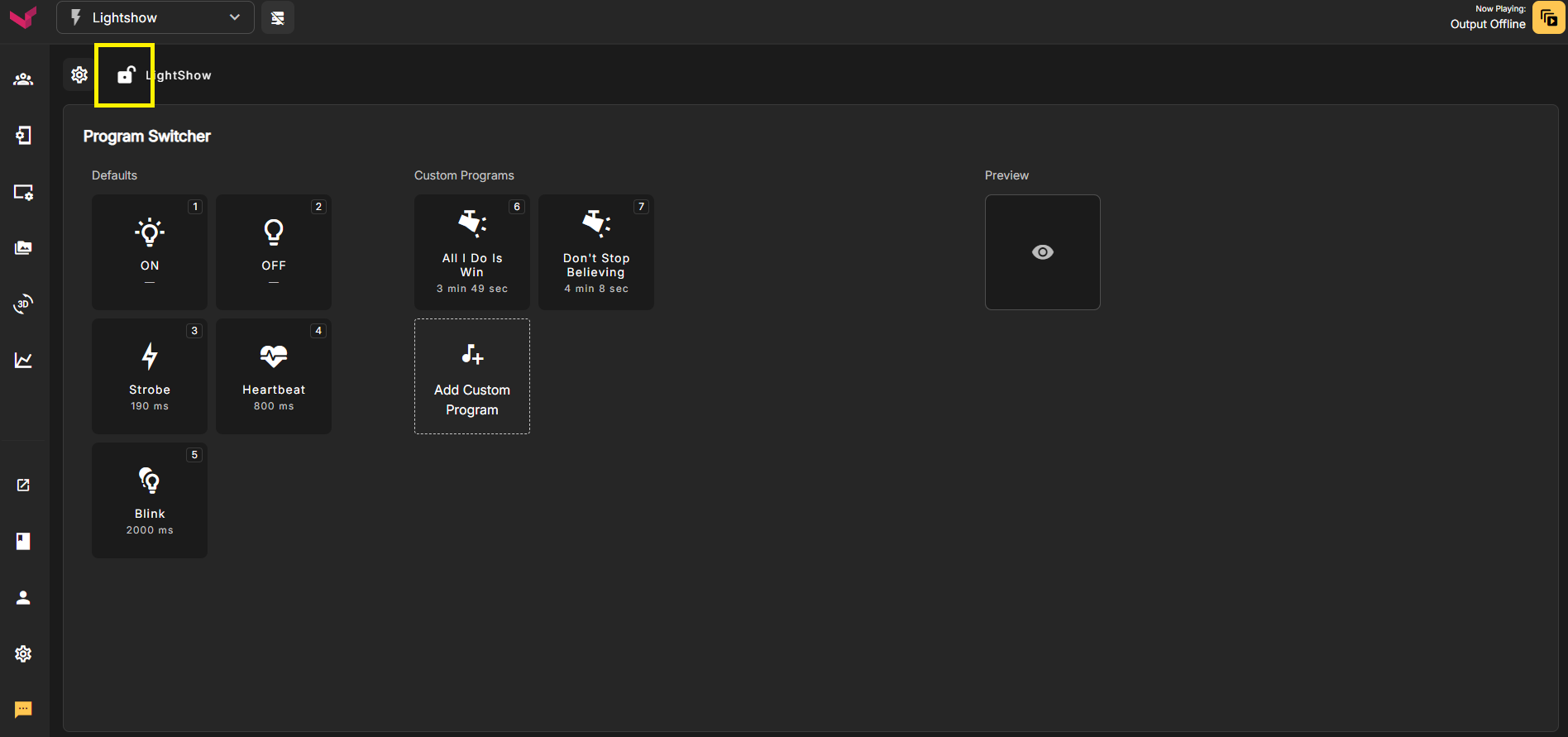
Once you are done with Lightshow, be sure to click the Lock icon so that all participating fans are redirected to your chosen URL.
Was this article helpful?
That’s Great!
Thank you for your feedback
Sorry! We couldn't be helpful
Thank you for your feedback
Feedback sent
We appreciate your effort and will try to fix the article