Click here to open this guide in a new browser tab. You can also watch the Video Guide on this topic.
This guide will show you how to create a Groov Template. Groov Templates are Groov Videos using multiple fans at once, singing together in unison.
Creating a Groov Template
Follow these easy steps to create your own Groov Template video. Once the video is created, you can either add it to the Playlist or you can download it as an MP4 for use elsewhere.
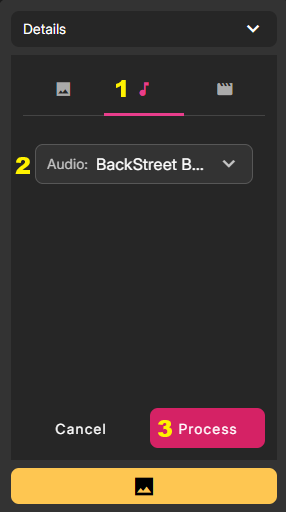
1. The first step is to create several individual Groovs using the same song for each of them. On the Capture page, click the Magic Wand icon over any submission, select the Groov icon, and use the dropdown to select the Groov and click Process
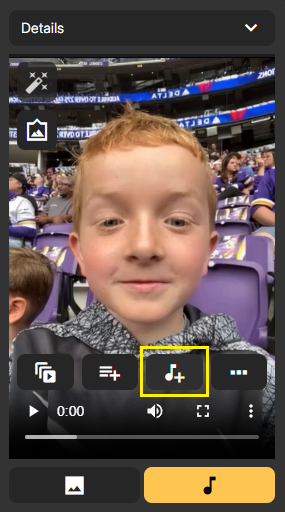
2. The second step it to Mouse Hover any Groov video and click the Add to Groov Template button for each of the videos you wish to add. As a reminder, they must all use the same Audio File in the dropdown.
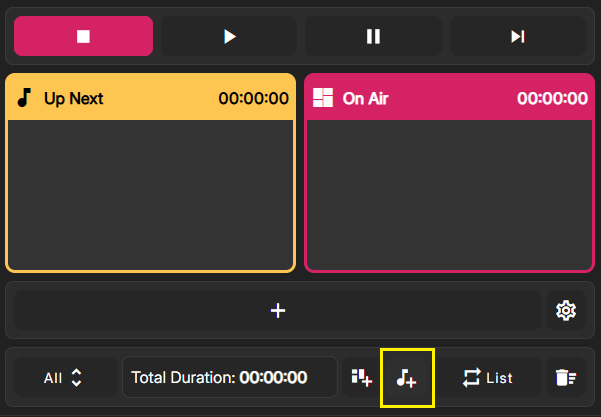
3. Once you're done adding individual Groovs, open the Capture Playlist and click the Groov Templates button.
4. On the Groov Templates menu, you can make some final adjustments and then click Generate Groov Output when you're done.
Audio Clip: You can change this dropdown if you'd like to create a Groov Template with a different Audio File.
Output Style: This is just a visual option for the Groov Template. It determines how the output pans between the various individual videos.
Preview: Once you've clicked Generate Groov Output, a preview will display in this area.
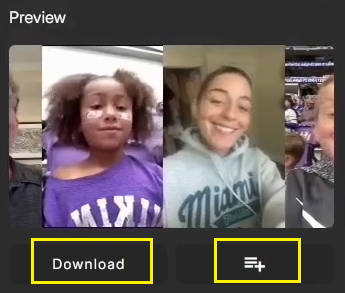
Generate Groov Output: Click this button to create your finished product. After a couple of minutes, the render will complete and you can choose to Preview, Download, or Add to Playlist using the buttons at the very bottom.
Was this article helpful?
That’s Great!
Thank you for your feedback
Sorry! We couldn't be helpful
Thank you for your feedback
Feedback sent
We appreciate your effort and will try to fix the article