Click here to open this guide in a new browser tab.
This guide will show you how to set up and use the Video Magic app.
Topics Covered:
- Creating a Prompt
- Submitting an Image
- Using Video Magic to Animate an Image into a Video
- Download the Rendered Video, or add it to the Capture Playlist
i. Creating a Prompt
To begin, open the Prompt Menu:
- Use the dropdown menu in the header to select Capture
- Click the gear icon underneath that dropdown
- When the menu opens, click the Video Magic tab
- Expand the Dropdown on the right and then select Add New Prompt
You'll then see the fields where you can name your prompt (Prompt Name) so its easily recognizable in the menus, and also where you type the prompt itself (Prompt Value).
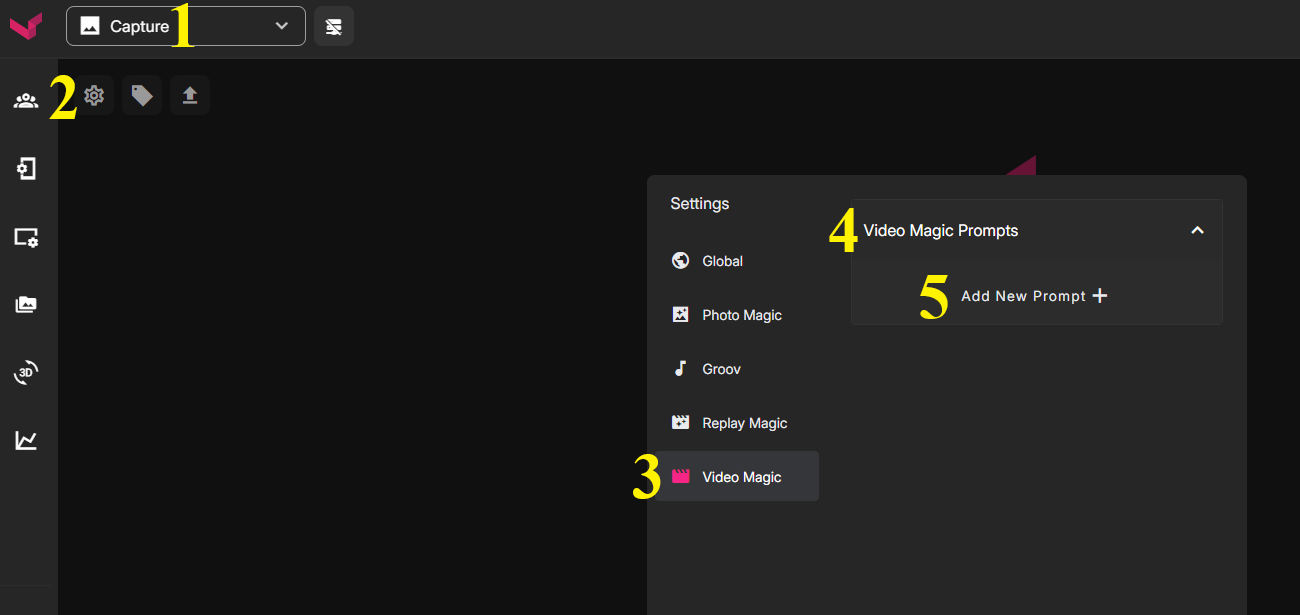
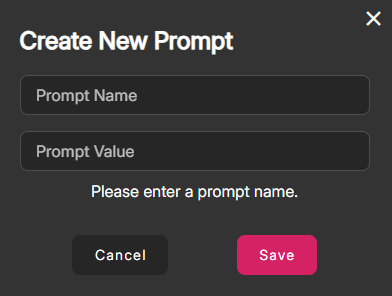
On this menu, we can:
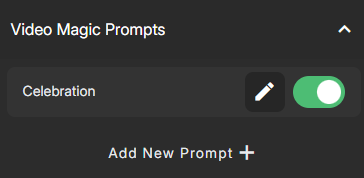
- Add new prompts by clicking the "Add New Prompt" button
- Edit an existing prompt by clicking the pencil button next to any prompt
- Toggle any prompt On/Off. If toggled Off, the prompt will not be seen in the dropdown menu when using the Magic Wand button
Phrasing Your Prompt / Sample Prompts
The prompt is the wording that the system uses to animate your image into a video. Describe the action you want to see in the AI Rendered video, and you can use fairly simple descriptions. You can word your prompts in the following manner, but you're also encouraged to experiment and find what works best for you.
[Subject] is [Action]
For example:
- A person is waving hello
- A mascot is flexing his muscles
You can also incorporate details about the scene: [Subject] is [Action]. [Scene Motion]
For example:
- A person rows a boat. Fireworks explode in the sky above
- A person drinks a tropical drink. The palm trees behind them blow gently in the wind
ii. Submitting an Image
You have the 2 standard options to get images into the system:
- Submitted via Capture QR Code. This QR Code can be found in the Left Nav - Input/Output Links
- Manually uploaded via the Up Arrow at the top of the Capture Page
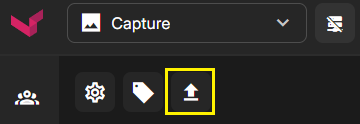
Once you've created a Prompt and images have been submitted, Video Magic is ready to be used.
iii. Using Video Magic to Animate an Image
Once you have your prompt created and images submitted, you can begin the render process for any image:
- Use the dropdown menu to select Capture
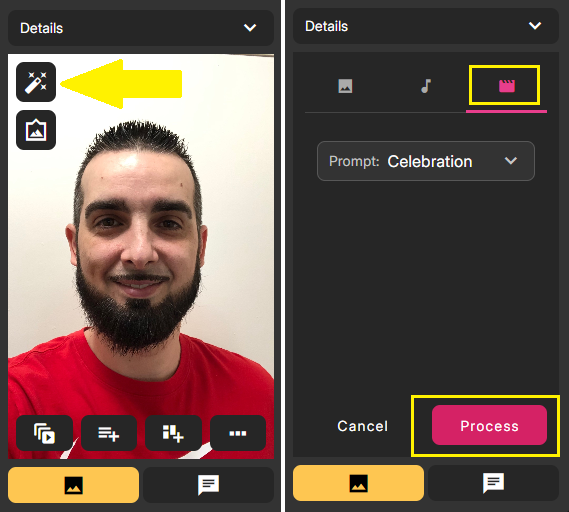
- Mouse-hover the Image and click the Magic Wand button in the upper left corner
- Next, click the Video Magic icon on the right
- In this menu, use the dropdown to select the prompt to use and then click PROCESS
- After a couple minutes, your video will finish rendering. Once finished, it will have an additional button below it that you can use to view the AI render
iv. Download the Rendered Video or Add it to the Capture Playlist
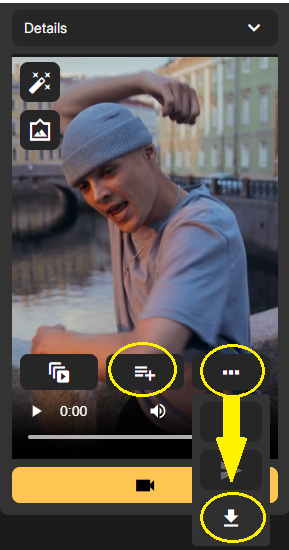
You can then add this clip to the Capture playlist by using the "Add to Playlist" button, or you can download it and use it elsewhere to enhance a video reel. To download, click the 3 dots to expand the menu and then click the Download button.
Was this article helpful?
That’s Great!
Thank you for your feedback
Sorry! We couldn't be helpful
Thank you for your feedback
Feedback sent
We appreciate your effort and will try to fix the article